Run a Local LLM with OpenClaw on Your Mac Mini
Learn how to install and run OpenClaw on a Mac Mini for private, offline AI inference. Step-by-step guide covers setup, model loading, and practical tips for local large language model deployment.
Tags
Quick summary
Learn how to install and run OpenClaw on a Mac Mini for private, offline AI inference. Step-by-step guide covers setup, model loading, and practical tips for local large language model deployment.
Run a Local LLM with OpenClaw on Your Mac Mini
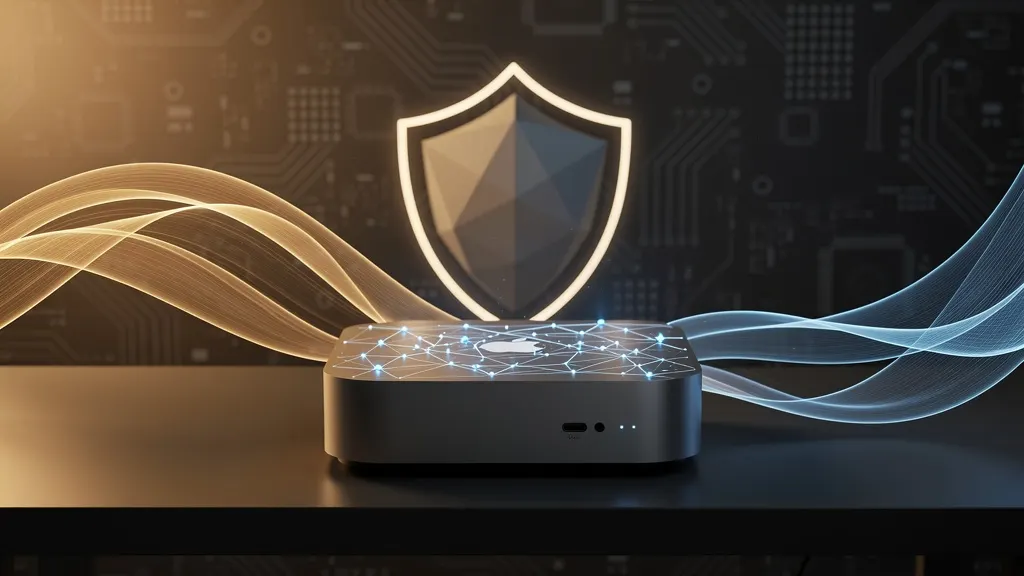
Running large language models (LLMs) locally on consumer hardware has become increasingly practical, especially with Apple Silicon Macs. The Mac Mini, with its unified memory architecture and efficient neural engine, is an excellent candidate for experimenting with local LLMs. This article walks you through setting up OpenClaw—a lightweight, open-source tool for managing and running local LLMs—on your Mac Mini, from installation to practical usage.
Requirements
Before you begin, ensure your Mac Mini meets these hardware and software prerequisites:
- Mac Mini with Apple Silicon (M1, M2, or M3 series): The unified memory (RAM) is critical; aim for at least 16 GB for 7B-parameter models, 32 GB+ for larger models.
- macOS Ventura or later (Sonoma recommended for best compatibility).
- At least 20 GB free disk space for model downloads and logs.
- A stable internet connection for downloading models and dependencies.
- Homebrew installed (optional but simplifies dependency management). If not installed, run:
/bin/bash -c "$(curl -fsSL https://raw.githubusercontent.com/Homebrew/install/HEAD/install.sh)"- Python 3.10 or later (check with
python3 --version). Install via Homebrew if needed:brew install python@3.11.
Step-by-Step Installation
OpenClaw is a command-line tool that wraps several popular local LLM runners (like llama.cpp and Ollama) into a unified interface. It is not affiliated with any specific model provider, but leverages open-source backends.
1. Install OpenClaw
OpenClaw is distributed as a Python package via pip. Open Terminal and run:
pip3 install openclawIf you encounter permission errors, use pip3 install --user openclaw or create a virtual environment first:
python3 -m venv openclaw-env
source openclaw-env/bin/activate
pip install openclaw
2. Verify Installation
Check that OpenClaw is installed correctly:
openclaw --versionYou should see output like openclaw 0.3.1 (version may vary). If you get a command not found error, ensure the Python bin directory is in your PATH (e.g., add export PATH="$HOME/.local/bin:$PATH" to your ~/.zshrc).
3. Install a Compatible Backend
OpenClaw supports multiple backends. For the best performance on Apple Silicon, we recommend llama.cpp (which includes Metal acceleration). Install it via OpenClaw:
openclaw backend install llama.cppThis command downloads and compiles the llama.cpp binary with Metal support, optimizing it for your Mac Mini's GPU. The process takes 2–5 minutes depending on your internet speed and CPU.
4. Download a Model
Now, download a model. For a balanced trade-off between quality and resource usage, try Mistral 7B (a popular open-source model). OpenClaw can pull models from Hugging Face Hub:
openclaw model pull mistralai/Mistral-7B-Instruct-v0.2This downloads the model weights (approximately 4.1 GB for the 4-bit quantized version). You can also list available models with openclaw model list.
5. Configure OpenClaw (Optional but Recommended)
Create a configuration file to set default parameters like context length and temperature:
openclaw config set context_length 4096
openclaw config set temperature 0.7
These settings affect how the model generates responses. A lower temperature (e.g., 0.2) makes output more deterministic; higher values (e.g., 0.9) increase creativity.
Usage Examples
Once installed, you can interact with the model in several ways. All examples assume you have activated your virtual environment and are in the project directory.
Example 1: Interactive Chat
Start an interactive chat session directly in the terminal:
openclaw chat --model mistralai/Mistral-7B-Instruct-v0.2You'll see a prompt like User: . Type your messages and press Enter. The model will respond in real time. For example:
User: Explain the concept of recursion in programming in one sentence.
Assistant: Recursion is a programming technique where a function calls itself to solve a problem by breaking it down into smaller, identical subproblems.
To exit, type /exit.
Example 2: Single Prompt Response
For scripted usage or quick queries, use the run command:
openclaw run --model mistralai/Mistral-7B-Instruct-v0.2 --prompt "Write a haiku about a Mac Mini."Output might be:
Silicon whispers,
Mini hums with quiet might,
Code blooms in the night.
Example 3: Batch Processing from a File
If you have multiple prompts in a text file (one per line), process them all at once:
echo "Summarize the benefits of local LLMs." > prompts.txt
echo "List three ways to optimize inference on Apple Silicon." >> prompts.txt
openclaw batch --model mistralai/Mistral-7B-Instruct-v0.2 --input prompts.txt --output responses.txt
This generates a responses.txt file with model outputs for each prompt, one per line.
Example 4: Using a Python Script
You can also integrate OpenClaw into Python workflows via its API. Create a file query_model.py:
import openclaw

# Initialize the model
model = openclaw.load_model("mistralai/Mistral-7B-Instruct-v0.2")

# Generate a response
response = model.generate("What are the advantages of running LLMs locally on a Mac Mini?")
print(response)
Run it with:
python3 query_model.pyThe script will output something like:
Local LLMs offer privacy (no data sent to cloud), low latency (no internet dependency), and offline capability, while leveraging Apple Silicon's efficiency for cost-effective inference.Example 5: Changing Backend or Model
If you want to try a different backend (e.g., Ollama for a more user-friendly experience), install it:
openclaw backend install ollamaThen switch to it:
openclaw backend use ollamaSimilarly, you can switch models at any time:
openclaw model pull TheBloke/Llama-2-7B-Chat-GGUF  # a quantized Llama 2 model
openclaw chat --model TheBloke/Llama-2-7B-Chat-GGUF
Performance Tuning
To get the best performance from your Mac Mini, consider these tips:
- Monitor memory pressure: Use Activity Monitor (Memory tab) to ensure you don't exceed your RAM. Models like Mistral 7B (4-bit) use about 4–5 GB RAM. Larger parameter models may require more.
- Adjust quantization: For lower memory usage, download a 4-bit or 5-bit quantized model (e.g., from TheBloke on Hugging Face). OpenClaw supports GGUF format, which is highly optimized.
- Enable Metal acceleration: Ensure
--metalflag is active (OpenClaw enables it by default on Apple Silicon). You can verify withopenclaw config get metal. - Use batch processing: For repeated queries, batch them to reduce overhead.
Troubleshooting Common Issues
- "No backend installed" error: Run
openclaw backend install llama.cppagain, ensuring you have internet access. - Model fails to load: Check your available RAM. If you have 8 GB, stick to 3B-parameter models like
microsoft/phi-2(2.7B). Useopenclaw model pull microsoft/phi-2. - Slow responses: Close other applications to free up memory. Also, ensure your Mac Mini is plugged in (not on battery).
- Command not found after install: Restart Terminal or run
hash -rto refresh the command cache.
Conclusion
Running a local LLM with OpenClaw on your Mac Mini is straightforward and unlocks powerful AI capabilities without relying on cloud services. You now have a fully functional setup that respects your privacy, works offline, and leverages Apple Silicon's efficiency. Start with Mistral 7B for general tasks, then experiment with other models from the Hugging Face Hub—like Llama 2 or Phi-2—to find the best fit for your workload. As the open-source LLM ecosystem evolves, tools like OpenClaw will continue to make local AI more accessible. Happy coding!